---
title: ZITADEL on Google Cloud Workforce Identity
description: "Configure Workforce Identity Federation with ZITADEL to log in users and assign roles on Google Cloud using OIDC claims"
sidebar_label: Google Cloud
---
import CreateApp from "../application/_application.mdx";
This guide shows how to login users and assign roles with [Workforce Identity Federation to Google Cloud](https://cloud.google.com/iam/docs/workforce-identity-federation).
It covers how to:
- create and configure your application in ZITADEL
- configure an Action to transform claims
- create and configure the connection to Google Cloud with Workforce Identity Federation using OpenID Connect (OIDC)
Prerequisites:
- existing ZITADEL Instance, if not present follow [this guide](/guides/start/quickstart)
- existing ZITADEL Organization, if not present follow [this guide](/guides/manage/console/organizations-overview)
- existing ZITADEL project, if not present follow the first 3 steps [here](/guides/manage/console/projects-overview)
- prerequisites on Google Cloud side [in the settings guide](https://cloud.google.com/iam/docs/configuring-workforce-identity-federation).
> We have to switch between ZITADEL and a Google Cloud. If the headings begin with "ZITADEL" switch to the ZITADEL Management Console and if
> the headings start with "Google Cloud" please refer to the configuration guide on Google Cloud.
## **Google Cloud**: Configure
Follow the steps **Before you begin**, **Required roles**, and **create a workforce identity pool** (OIDC) in the [in the configuration guide](https://cloud.google.com/iam/docs/configuring-workforce-identity-federation).
Before you create the workforce identity pool provider you should create your application in ZITADEL.
## **ZITADEL**: Create the application
In your existing project:
First of all we create the application in your project.
Google Cloud requires just an ID Token as JWT including the [described required and optional scopes](https://cloud.google.com/iam/docs/workforce-identity-federation#attribute-mappings).
Create a new application and click on "I'm a pro. Skip this wizard."
- **Application Type**: Web
- **Grant Types**: Implicit
- **Response Type**: ID Token
- **Authentication Method**: None
You need to add the redirect URL and configure token settings after creating the application.

## **ZITADEL**: Redirect url

After creating, go to the application settings "Redirect settings" and add the redirect url from Googles configuration guide.
It looks something like `https://auth.cloud.google/signin-callback/locations/global/workforcePools/WORKFORCE_POOL_ID/providers/WORKFORCE_PROVIDER_ID`.
Save the settings.
Make sure to replace the `WORKFORCE_POOL_ID` and `WORKFORCE_PROVIDER_ID` with your values in the redirect url
## **ZITADEL**: Token settings

After creating, go to the application settings "Token settings" and configure as follows:
- **Auth Token Type**: JWT
- **Add user roles to the access token**: disabled (optional)
- **User roles inside ID Token**: enabled
- **User Info inside ID Token**: enabled
Save the settings.
## **ZITADEL**: Custom claims
Go to your project and create roles according to the Groups in Google Cloud.
Authorize a test user by assigning roles in ZITADEL.
Google Cloud expects some claims, including groups, in a specific format as [described here](https://cloud.google.com/iam/docs/workforce-identity-federation#attribute-mappings).
Claims can be transformed in ZITADEL with [Actions](/guides/manage/console/actions-overview).
Create an Action with the following code to flatten the roles and include the claim for the users' display name.
If you want to configure a special attribute mapping in the workforce identity pool provider, then adjust the claims accordingly.
```javascript
function googleGroups(ctx, api) {
if (ctx.v1.user.grants == undefined || ctx.v1.user.grants.count == 0) {
return;
}
let grants = [];
ctx.v1.user.grants.grants.forEach(claim => {
claim.roles.forEach(role => {
grants.push(claim.projectId+':'+role)
})
})
api.v1.claims.setClaim('google.groups', grants)
api.v1.claims.setClaim('google.display_name', ctx.v1.getUser().human.displayName)
}
```
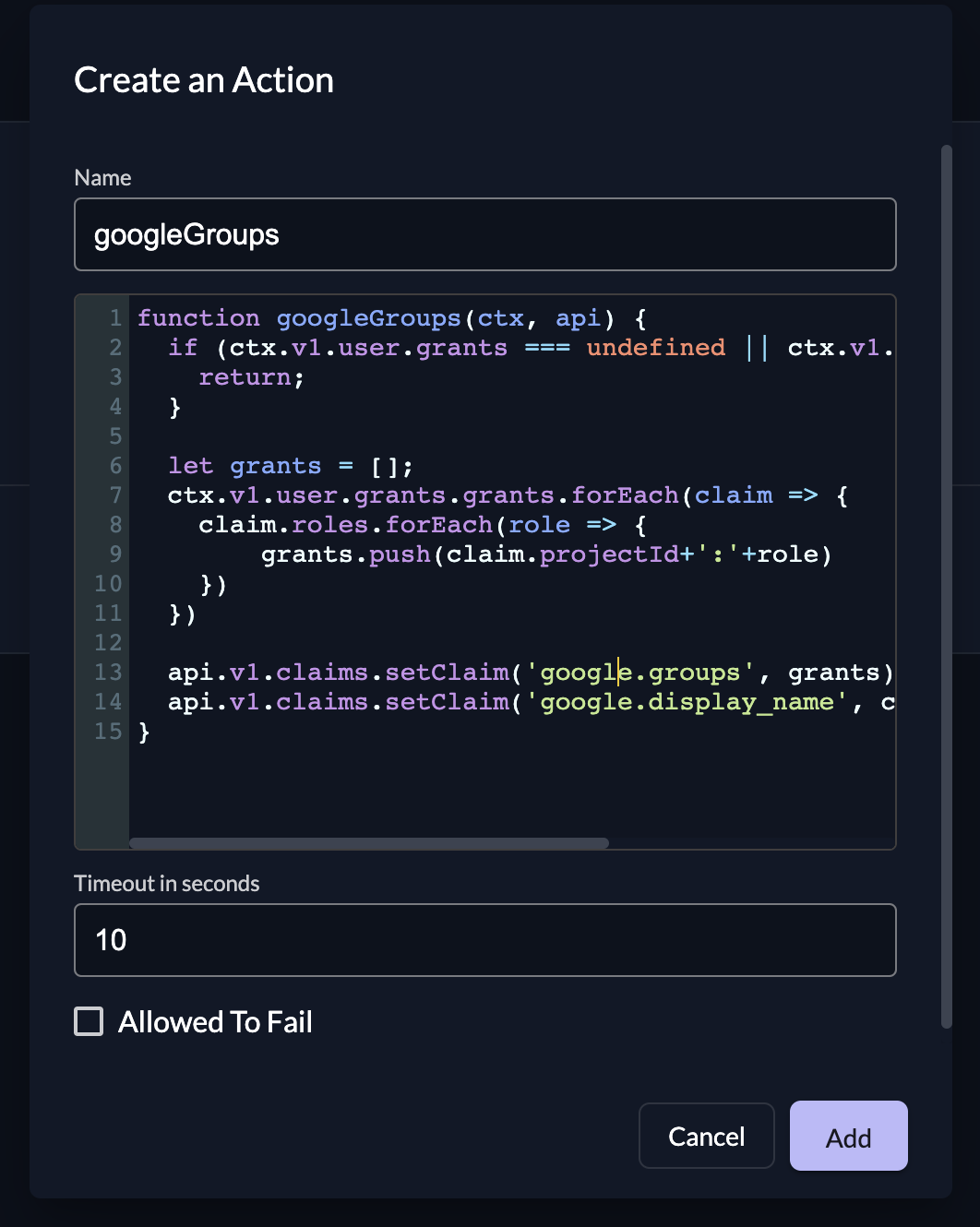
Make sure that the name of the action matches the name of the function.
And add the the Action Script to the following Flow and Trigger:
- **Flow Type**: Complement Token
- **Trigger Type**: Pre access token creation
- **Actions**: googleGroups

## **Google Cloud**: Create a WIP provider
Complete the steps in the [in the configuration guide](https://cloud.google.com/iam/docs/configuring-workforce-identity-federation) with the `ISSUER_URI` and `CLIENT_ID` from ZITADEL.