---
title: The ZITADEL Quick Start Guide
description: Learn how to integrate OIDC PKCE authentication in your application using ZITADEL in under 5 minutes.
sidebar_label: Quick Start Guide
keywords: [ZITADEL, OIDC, PKCE, Authentication, Identity Management]
---
import { Tab } from 'fumadocs-ui/components/tabs';
import { FrameworkSelector } from '@/components/framework_selector';
import AppConfig from './_app_config.mdx';
import AppValues from './_app_values.mdx';
In this guide, you’ll set up a Zitadel account and authenticate your first example application.
## Get Started with ZITADEL Cloud
Set up your ZITADEL account and organization to begin managing identities for your applications.
### 1. Create your Account and Organization
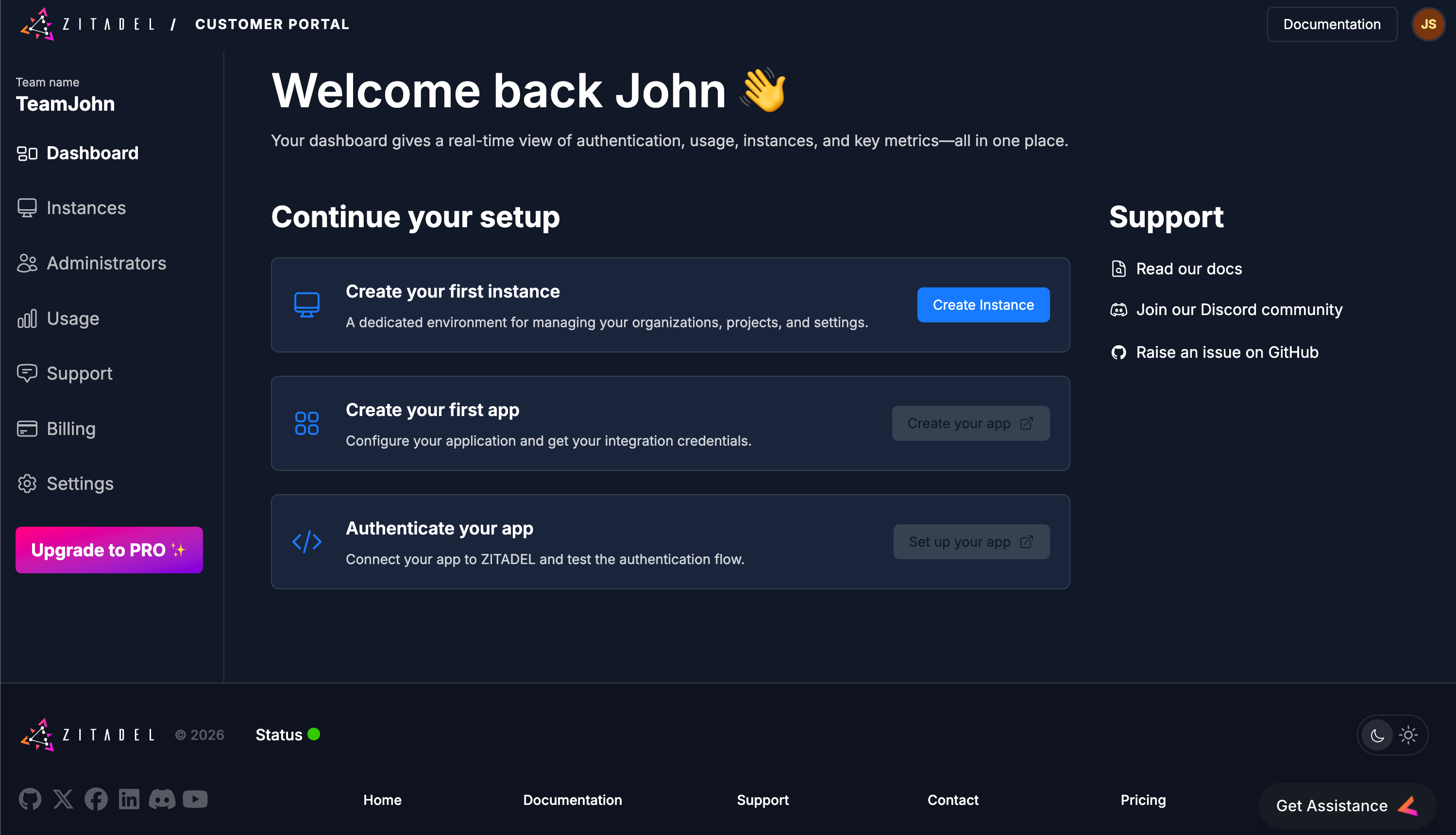
You first need access to the ZITADEL Cloud Customer Portal.
This is the administrative hub for managing your billing, teams, and instances.
1. **Sign Up**: Go to [zitadel.com](http://zitadel.com) and select Sign Up.
2. **Onboarding**: Follow the prompts to verify your email and set up your Portal Team.
- Tip: We recommend using Passkeys for a secure, passwordless login experience.
3. **Access**: Once authenticated, you will be redirected to the Customer Portal dashboard.


### 2. Quick Onboarding
Complete the brief onboarding questions.
This data helps us prioritize the development of new features, SDKs, and integrations that matter most to our community.

### 3. Create your ZITADEL instance
An [Instance](/concepts/structure/instance) is a fully isolated identity environment with its own users, policies, and data.
Most developers use separate instances to isolate Development, Test, and Production workflows.
Follow these steps to deploy your first instance:
1. **Start**: Click Create Instance on your dashboard.
2. **Identity**: Provide an Instance Name (e.g., dev-environment). This will be used to generate your default domain (e.g., dev-environment-xxxx.zitadel.cloud).
3. **Locality**: Select your Region.
- Note: Choosing a region close to your users minimizes latency and helps with data residency compliance.
4. **Admin Setup**: Create your Instance Administrator. This user has "root" permissions to manage all organizations, policies, and settings within this specific instance.
5. **Deploy**: Review your configuration and click Create Instance.
### 4. Create your Project and Application
In ZITADEL, [**Applications**](/guides/manage/console/applications-overview) are grouped into [**Projects**](/guides/manage/console/projects-overview).
This allows multiple applications (like a React frontend and a Go backend) to share the same roles and authorizations.
#### Launch the Management Console
Click **Create your app**. This opens the Management Console for your instance in a new tab.
Log in using the Admin credentials you just created.

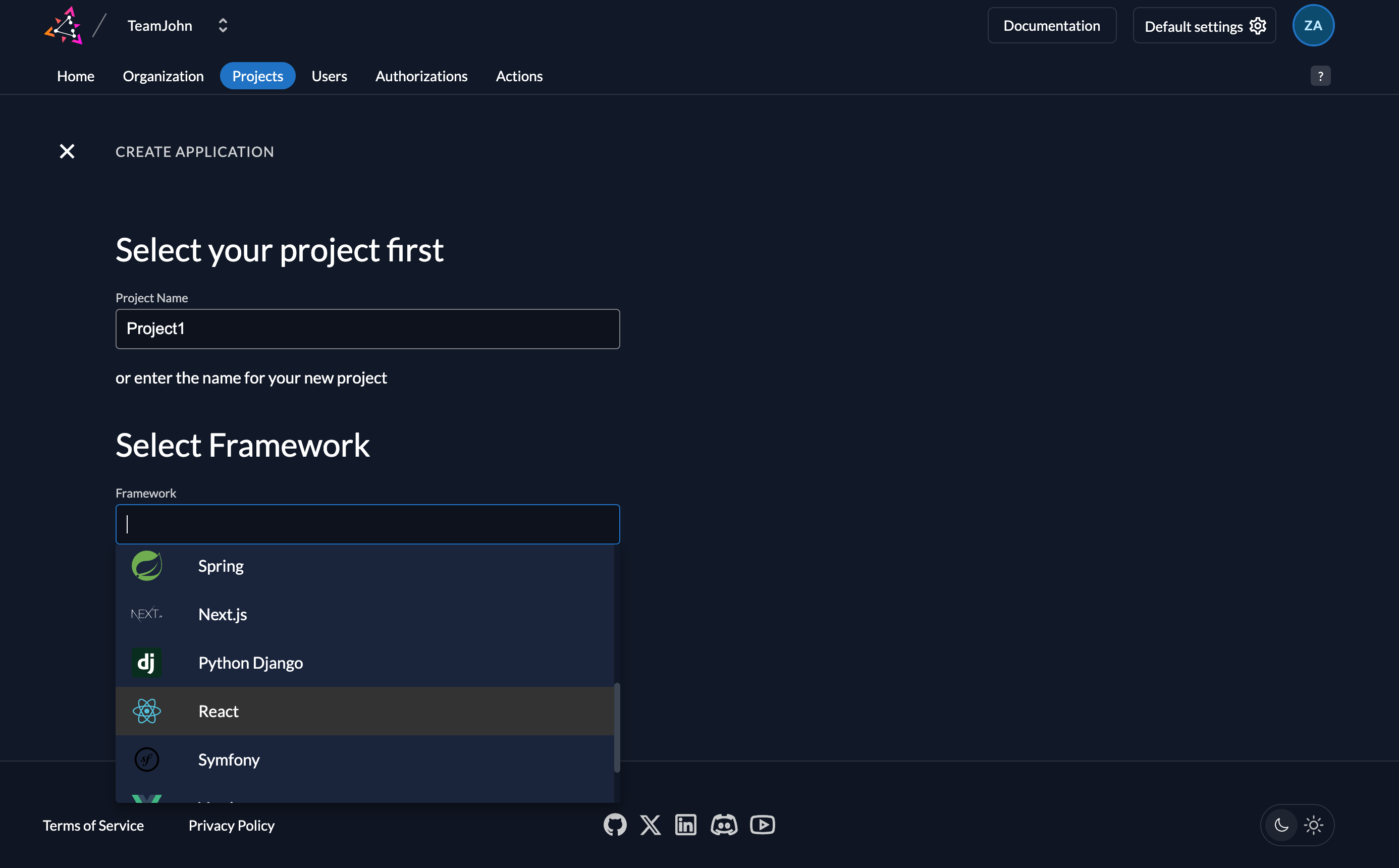
#### Step 1: Define your Project
- **Name**: Enter a name (e.g., Project1).
- **Framework**: Select your preferred framework
- **Continue**: Click the Continue button.
#### Step 2: Review Default Configuration
ZITADEL automatically configures the best security settings for your selected framework.

### 5. Collect your Integration Keys
## Integrate ZITADEL into your App
### How the Authentication Flow Works
ZITADEL handles the complexity of the OIDC handshake so your app stays secure without manual token management.
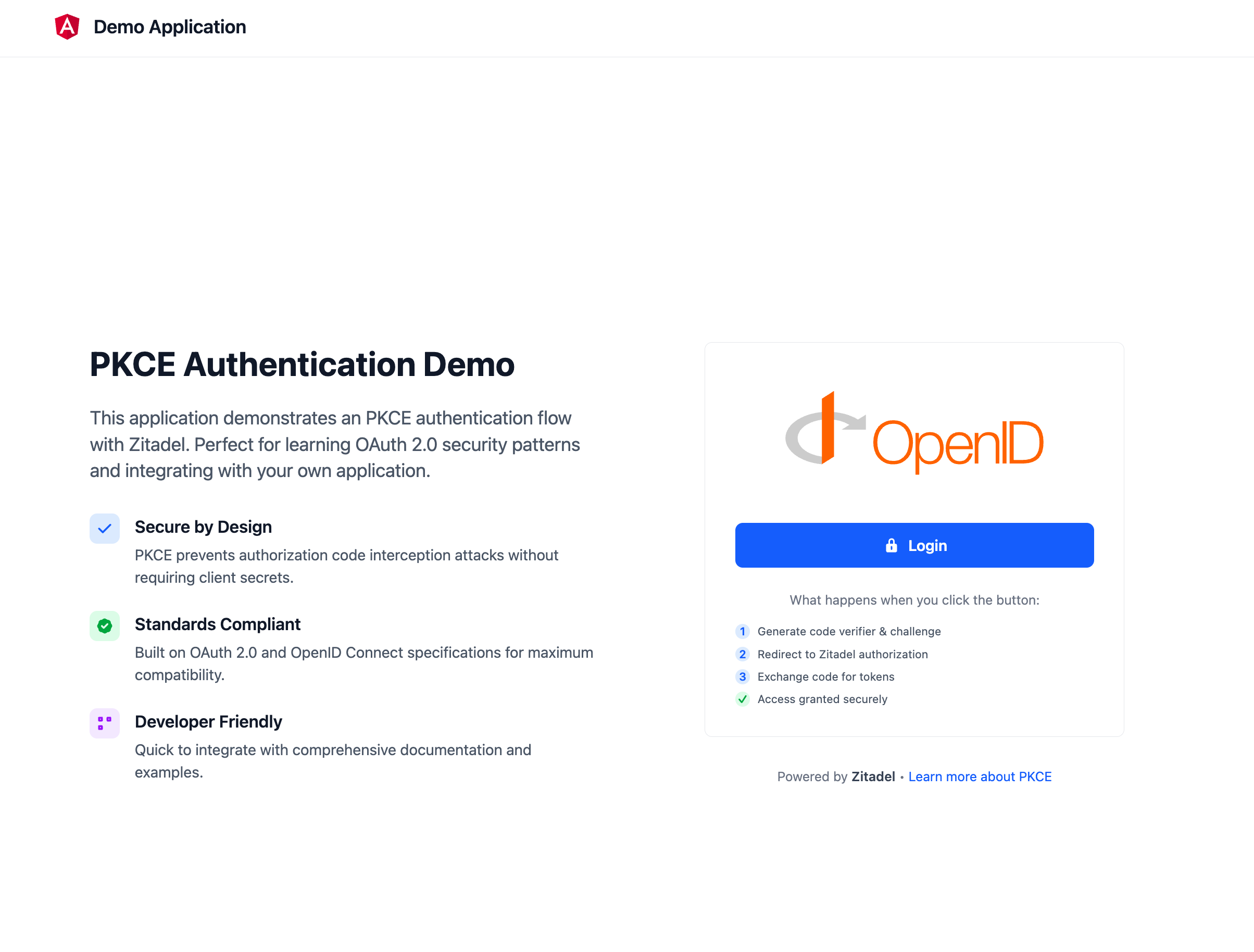
1. **Login**: App redirects the user to ZITADEL with a PKCE challenge.
2. **Auth**: User authenticates on the ZITADEL hosted login page.
3. **Exchange**: ZITADEL returns an Auth Code, which the app exchanges for an Access Token.
4. **Tokens**: The app shows the Access and ID Token
5. **Logout**: The app clears local tokens and terminates the ZITADEL session.
### 1. Prerequisites
- [Node.js](https://nodejs.org/)
- Code Editor: [VS Code](https://code.visualstudio.com/) or similar
- [Flutter](https://docs.flutter.dev/install)
- Code Editor: [VS Code](https://code.visualstudio.com/) or similar
- [Go](https://go.dev/)
- Code Editor: [VS Code](https://code.visualstudio.com/) or similar
- [Node.js](https://nodejs.org/)
- Code Editor: [VS Code](https://code.visualstudio.com/) or similar
- [Node.js](https://nodejs.org/)
- Code Editor: [VS Code](https://code.visualstudio.com/) or similar
- [PHP](https://www.php.net/)
- [Composer](https://getcomposer.org/)
- Code Editor: [VS Code](https://code.visualstudio.com/) or similar
- [Node.js](https://nodejs.org/)
- Code Editor: [VS Code](https://code.visualstudio.com/) or similar
### 2. Get the Example Project
```bash
git clone https://github.com/zitadel/example-auth-angular.git
cd example-auth-angular
```
```bash
git clone https://github.com/zitadel/zitadel_flutter.git
cd zitadel_flutter
```
```bash
git clone https://github.com/zitadel/zitadel-go.git
cd zitadel_go
```
```bash
git clone git@github.com:zitadel/example-auth-nextjs.git
cd example-auth-nextjs
```
```bash
git clone https://github.com/zitadel/example-auth-react.git
cd example-auth-react
```
```bash
git clone https://github.com/zitadel/example-auth-symfony.git
cd example-auth-symfony
```
```bash
git clone git@github.com:zitadel/example-auth-vuejs.git
cd example-auth-vuejs
```
### 3. Configure your Credentials
1. Copy+paste the .env.example to .env.local
2. Update the ZITADEL_CLIENT_ID and ZITADEL_DOMAIN with the client id and issuer you collected in Step 5.
```bash
PORT=3000
NG_APP_ZITADEL_DOMAIN="https://your-zitadel-domain"
NG_APP_ZITADEL_CLIENT_ID="your-client-id"
NG_APP_ZITADEL_CALLBACK_URL="http://localhost:3000/auth/callback"
NG_APP_ZITADEL_POST_LOGOUT_URL="http://localhost:3000/auth/logout/callback"
NG_APP_ZITADEL_POST_LOGIN_URL="/profile"
```
No action required for this step.
The issuer and client Id will be passed directly when running the app (next step)
No action required for this step.
The issuer and client Id will be passed directly when running the app (next step)
1. Copy+past the .env.example to .env.local
2. Update the ZITADEL_CLIENT_ID, ZITADEL_CLIENT_SECRET and ZITADEL_DOMAIN with the client id and issuer you collected in Step 5.
```bash
NODE_ENV=development
PORT=3000
SESSION_SECRET="your-very-secret-and-strong-session-key"
SESSION_DURATION=3600
ZITADEL_DOMAIN="[https://your-instance.zitadel.cloud/](https://your-instance.zitadel.cloud/)"
ZITADEL_CLIENT_ID="zitadel-client-id"
ZITADEL_CLIENT_SECRET="zitadel-client-secret"
ZITADEL_CALLBACK_URL="http://localhost:3000/api/auth/callback/zitadel"
ZITADEL_POST_LOGIN_URL="/profile"
ZITADEL_POST_LOGOUT_URL="http://localhost:3000/api/auth/logout/callback"
NEXTAUTH_URL="http://localhost:3000"
```
1. Copy+paste the .env.example to .env
2. Update the ZITADEL_CLIENT_ID and ZITADEL_DOMAIN with the client id and issuer you collected in Step 5.
```bash
NODE_ENV=development
PORT=3000
VITE_ZITADEL_DOMAIN="https://your-zitadel-domain"
VITE_ZITADEL_CLIENT_ID="your-client-id"
VITE_ZITADEL_CALLBACK_URL="http://localhost:3000/auth/callback"
VITE_ZITADEL_POST_LOGIN_URL="/profile"
VITE_ZITADEL_POST_LOGOUT_URL="http://localhost:3000"
```
1. Copy+paste the .env.example to .env
2. Update the ZITADEL_CLIENT_ID and ZITADEL_DOMAIN with the client id and issuer you collected in Step 5.
```bash
PORT=3000
NG_APP_ZITADEL_DOMAIN="https://your-zitadel-domain"
NG_APP_ZITADEL_CLIENT_ID="your-client-id"
NG_APP_ZITADEL_CALLBACK_URL="http://localhost:3000/auth/callback"
NG_APP_ZITADEL_POST_LOGOUT_URL="http://localhost:3000/auth/logout/callback"
NG_APP_ZITADEL_POST_LOGIN_URL="/profile"
```
1. Copy+paste the .env.example to .env
2. Update the ZITADEL_CLIENT_ID and ZITADEL_DOMAIN with the client id and issuer you collected in Step 5.
```bash
NODE_ENV=development
PORT=3000
VITE_ZITADEL_DOMAIN="https://your-zitadel-domain"
VITE_ZITADEL_CLIENT_ID="your-client-id"
VITE_ZITADEL_CALLBACK_URL="http://localhost:3000/auth/callback"
VITE_ZITADEL_POST_LOGIN_URL="/profile"
VITE_ZITADEL_POST_LOGOUT_URL="http://localhost:3000"
```
### 4. Build and Run
```bash
npm install
npm run dev
```
Your app will be live at `http://localhost:4200`.
Make sure to replace the [zitadel_issuer] and [zitadel_client_id] with your own value before running the command
```bash
flutter run -d chrome --web-port=4444 --dart-define zitadel_url=[zitadel_issuer] --dart-define zitadel_client_id=[zitadel_client_id]
```
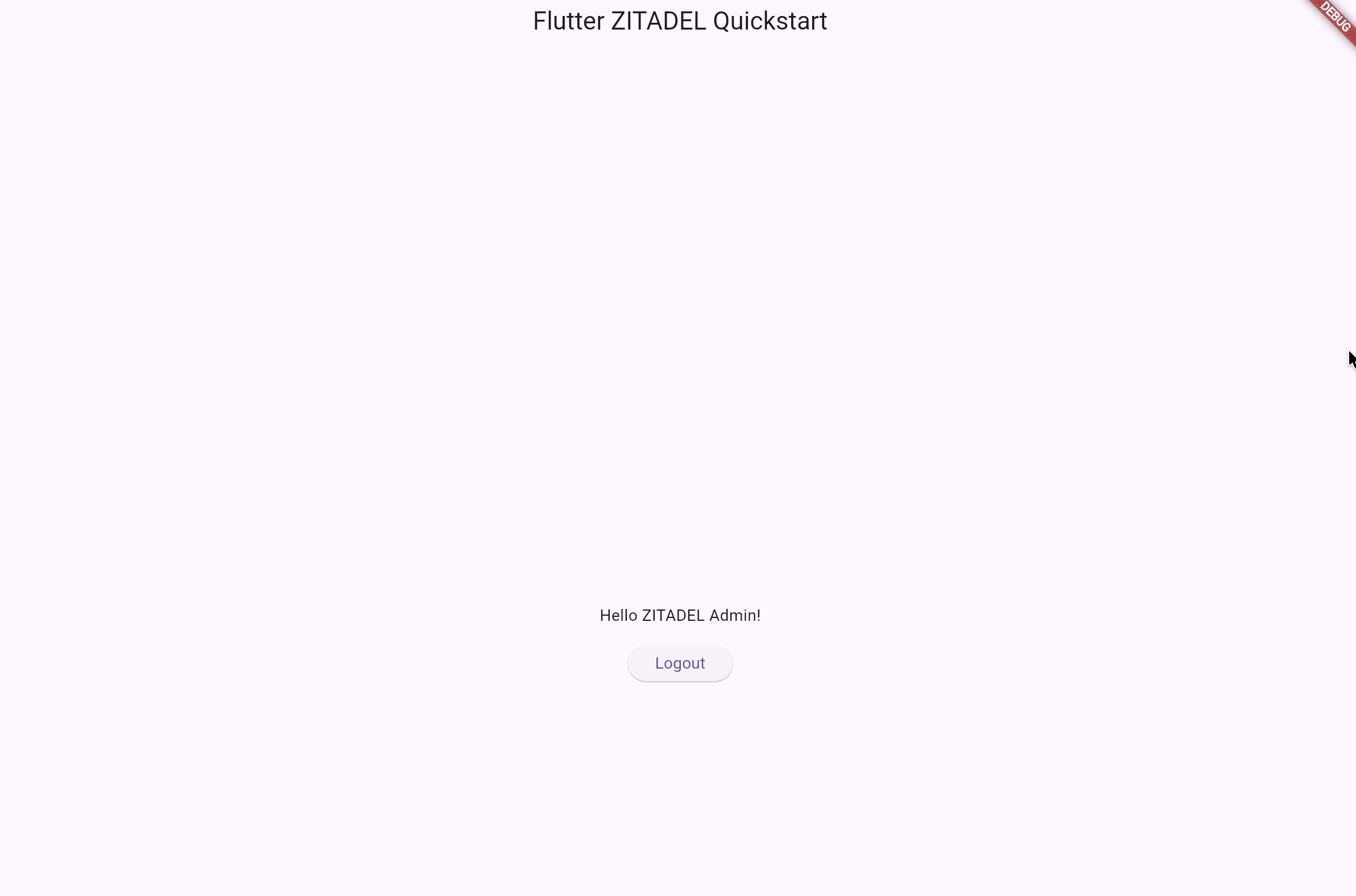
Your app will be live at `http://localhost:4444`.
Make sure to replace the [zitadel_domain] (use the domain from the issuer without the https://) and [zitadel_client_id] with your own value before running the command
```bash
go run example/app/app.go --domain [zitadel_domain] --key XKv2Lqd7YAq13NUZVUWZEWZeruqyzViM --clientID [zitadel_client_id] --redirectURI http://localhost:8089/auth/callback
```
Your app will be live at `http://localhost:8089`.

```bash
npm install
npm run dev
```
Your app will be live at `http://localhost:3000`.

```bash
npm install
npm run dev
```
Your app will be live at `http://localhost:3000`.
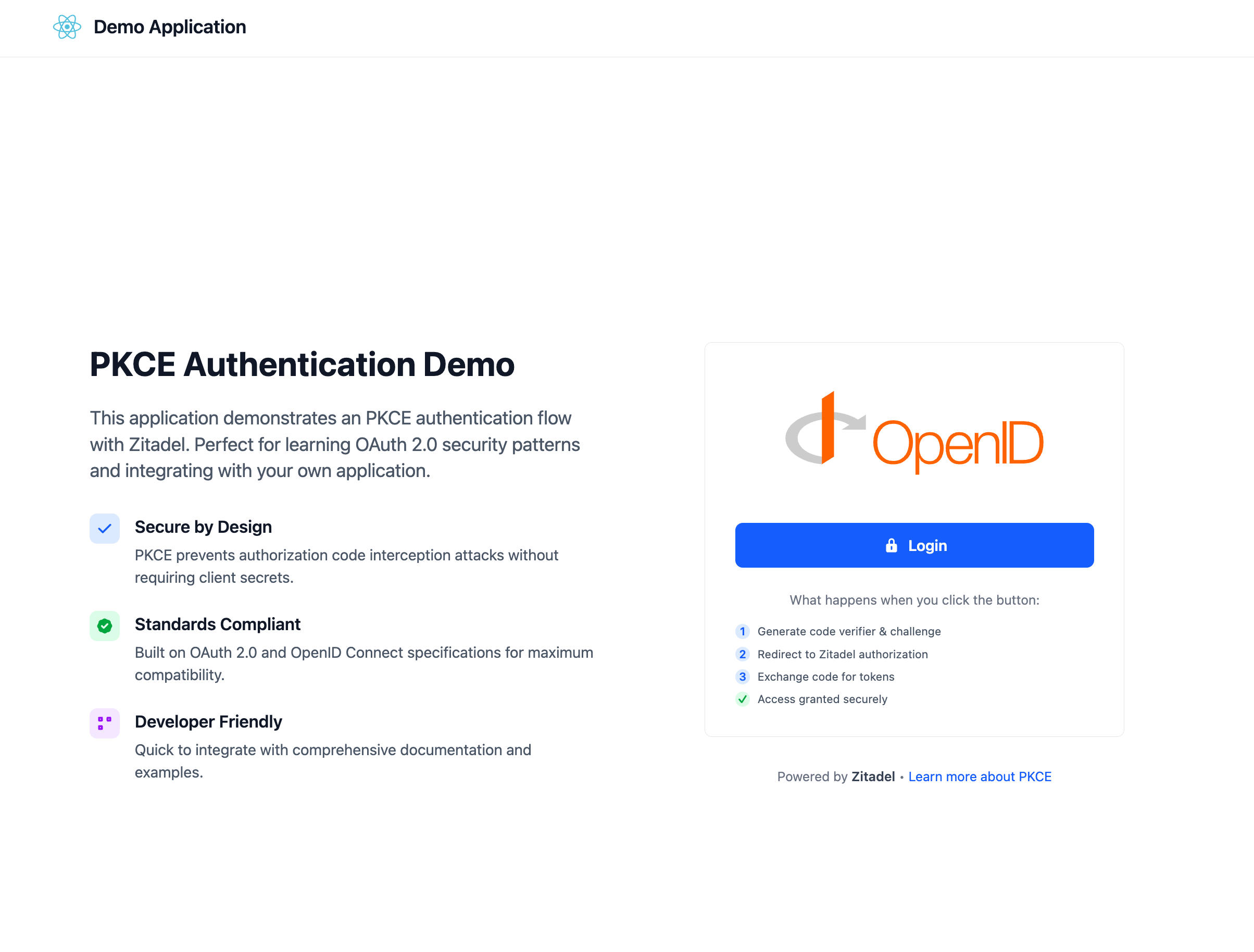
```bash
composer install
composer run dev
```
Your app will be live at `http://localhost:3000`.

```bash
npm install
npm run dev
```
Your app will be live at `http://localhost:3000`.

## Success! 🚀
You’ve successfully integrated ZITADEL into an application.
Login policy misconfigurations that occur during the testing phase can easily lead to a [lockout](/legal/policies/account-lockout-policy). To ensure you don't lose access to your instance:
1. **Generate a backup PAT:** Create a [Service User Personal Access Token](/guides/integrate/service-users/personal-access-token) with the [`IAM_OWNER`](/guides/manage/console/managers) role to revert any login UI misconfigurations using the API.
2. **Add a second Instance Manager:** Always designate at least one [**second instance manager**](/guides/manage/console/managers).
### What’s next?
- [**Example Applications**](/examples/introduction): Find more comprehensive guides and examples for the different frameworks
- [**SSO**](/guides/integrate/services): Learn how to add SSO to your services
- [**Customize the UI**](/guides/manage/customize/branding): Make the login page your own with Branding.
- [**Explore the API**](/apis/introduction): Check out the ZITADEL API Reference for advanced integrations.
Need help? Join our [Discord community](https://zitadel.com/chat) or explore the full Documentation. Happy coding!