---
title: Domain Discovery in ZITADEL
sidebar_label: Domain Discovery
---
This guide should explain how domain discovery works and how to configure it in ZITADEL.
## Overview
Domain discovery is typically used in [B2B](./b2b) or [SaaS](./saas) scenarios where you have users from different organizations and you want to route them according to their login methods, which could be a user name or, depending on your settings, also an [email / phone number](./configurations#use-email-to-login).
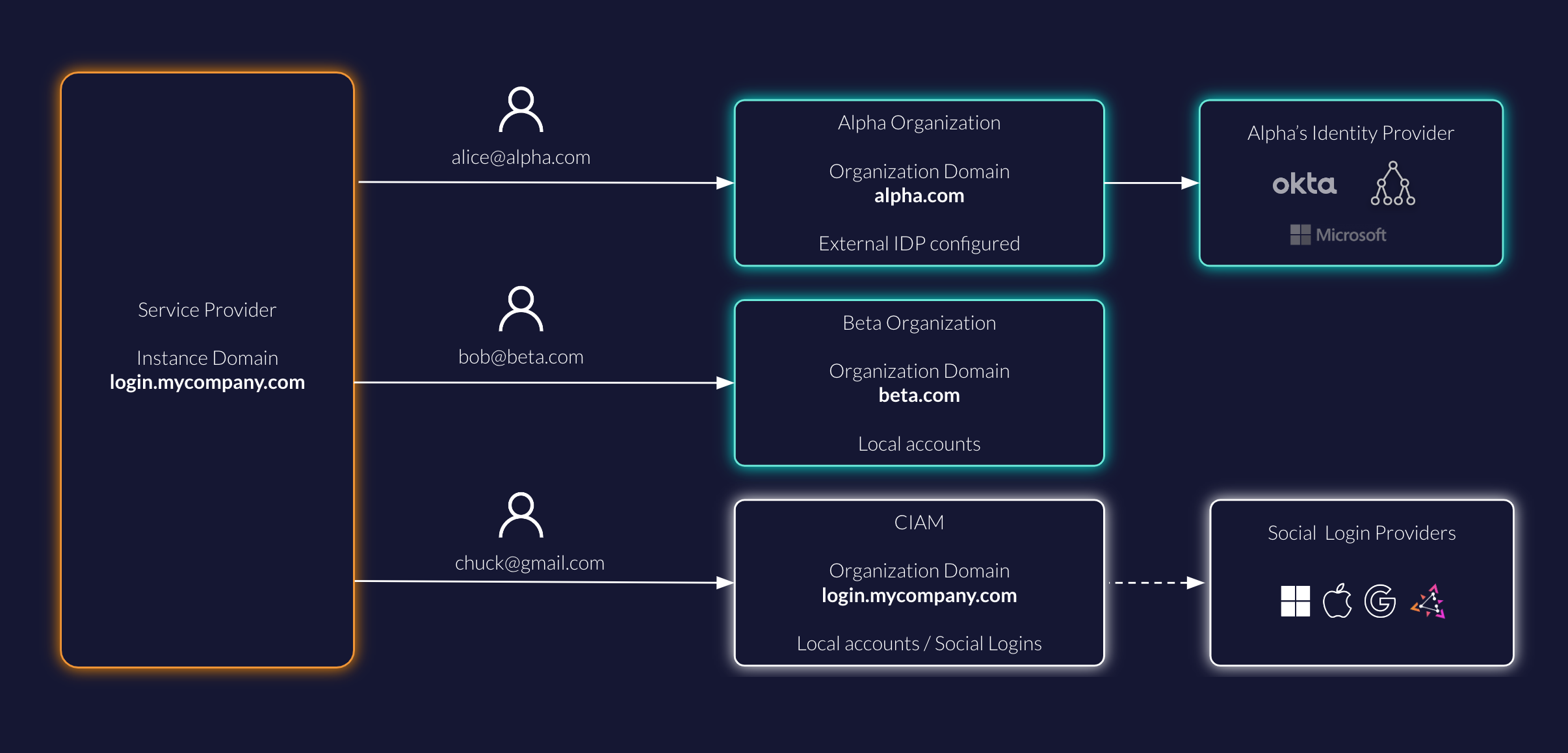
In the example there is a service provider with a ZITADEL instance running on a [Custom Domain](/guides/manage/cloud/instances#add-custom-domain) on `login.mycompany.com`.
By default, all users login on the organization **CIAM** with their preferred social login provider.
Users of the two business customers **Alpha** and **Beta** should log in, according to their organization login and access policy settings.
In the case of Alpha, users will log in via an external identity provider (eg, [Entra ID](/guides/integrate/identity-providers/azure-ad-oidc)).
Beta users must only log in with username/password and MFA instead.
For this scenario you need to route the user `alice@alpha.com` to the **Alpha Organization** and `bob@beta.com` to the **Beta Organization** respectively.
Follow this guide to configure your ZITADEL instance for this scenario.
## Instance
### Default Login Page
You will use the instance default settings for the login for the organization **CIAM**.
When opening `login.mycompany.com` then the login policy of the instance will be applied.
This means that you have to set up the [Login and Access](/guides/manage/console/default-settings#login-behavior-and-access) Policy and [Identity Providers](/guides/manage/console/default-settings#identity-providers) for the **CIAM** users on the instance itself.
You can also configure these settings on the default organization (see below) and send the scope `urn:zitadel:iam:org:id:{id}` with every [auth request](https://zitadel.com/playgrounds/oidc).
### Default Organization
Set **CIAM** as [default organization](/guides/manage/console/organizations-overview#default-organization).
You will find the overview of all organizations under the "Organizations" tab on the Default Settings.
The default organization will hold all unmatched users, ie. all users that are not specifically in the organizations **Alpha** or **Beta** in the example.
### Enable Domain Discovery
In the [Login Behavior and Security Settings](/guides/manage/console/default-settings#login-behavior-and-access) enable "Domain discovery allowed"
### Configure login with email
Follow this [settings guide](/guides/solution-scenarios/configurations#use-email-to-login) to allow users to login with their email address.
### Other considerations
You can also have multiple Custom Domains pointing to the same instance as described in this [settings guide](/guides/solution-scenarios/configurations#custom-application-domain-per-organization). In our example you could also use `alpha.mycompany.com` to show the login page of your instance.
The domain of your email notification can be changed by [setting up your SMTP](/guides/manage/console/default-settings#smtp).
## Organization
### Alpha organization
Users of **Alpha** should only be allowed to authenticate with their company's identity provider.
In the organization settings under Login Behavior and Access make sure the following settings are applied:
- **Username Password allowed**: Disabled
- **Register allowed**: Disabled - we will set this up on the external identity provider
- **External IDP allowed**: Enabled
Now you can set up an [external identity provider](/guides/manage/console/default-settings#identity-providers).
Given you have only one external identity provider set up, when a user tries to login on that organization, then the user will be automatically redirected to the external identity provider.
In case multiple providers are set up, then the user will be prompted to select an identity provider.
### Beta organization
Users of **Beta** must create an account and login with password and 2FA.
In the organization settings under `Login Behavior and Access`, make sure the following settings are applied:
- **Username Password allowed**: Enabled
- **Register allowed**: Disabled - you may want [Administrators](/concepts/structure/administrators) to set up accounts.
- **External IDP allowed**: Disabled
Make sure to [Force MFA](/guides/manage/console/default-settings#multifactor-mfa) so that users must set up a second factor for authentication.
### Verify domains
Switch to the organization **Alpha** and navigate to the settings and "Verified domains".
Verify the domain alpha.com following the [organization guide](/guides/manage/console/organizations-overview#usernames-and-domains).
Do the same for the **Beta** organization.
You can also disable domain verification with acme challenge in the [default settings](/guides/manage/console/default-settings#domain-settings).
## Conclusion
You should be all setup to try out domain discovery.
The user journeys for the different users would look as follows:
- User (Alice, Bob, Chuck) clicks a login button in your application
- Redirected to `login.mycompany.com` (ZITADEL running under a Custom Domain)
Chuck
1. Select the Google button
1. Redirect to Google IDP
1. Chuck logs in with Google credentials
1. Redirected back to your application
Alice
1. Alice enters alice@alpha.com and clicks next
1. Redirect to Entra ID Tenant (or any other IDP)
1. Alice logs in with her company credentials
1. Redirected back to your application
Bob
1. Bob enters bob@beta.com and clicks next
1. Bob will be redirected to a login with the branding of beta.com
1. Bob enters his password and MFA on the login screen
1. Redirected back to your application