---
title: Secure Go API Application with ZITADEL
description: "Secure Go APIs using OAuth 2.0 Token Introspection with ZITADEL and role-based authorization."
sidebar_label: Go API
---
This integration guide shows you how to integrate **ZITADEL** into your Go API. It demonstrates how to secure your API using
OAuth 2 Token Introspection.
> ℹ️ These examples and guides are based on our official [Go SDK](https://github.com/zitadel/zitadel-go).
>
> The SDK is a convenient wrapper around our low-level [OIDC library](https://github.com/zitadel/oidc). For most use cases, using the helpers provided in our [Go SDK](https://github.com/zitadel/zitadel-go) is the recommended approach for implementing authentication.
At the end of the guide you should have an API with a protected endpoint.
> This documentation references our HTTP example. There's also one for GRPC. Check them out on [GitHub](https://github.com/zitadel/zitadel-go/blob/next/example/api/http/main.go).
## Prerequisites
This will handle the OAuth 2.0 introspection request including authentication using JWT with Private Key using our [Go SDK](https://github.com/zitadel/zitadel-go).
All that is required, is to create your API, create a private key and a personal access token for a service account.
### Set up application and obtain keys
Before we begin developing our API, we need to perform a few setup steps in the ZITADEL Console.
You'll need to provide some information about your app. We recommend creating a new app to start from scratch.
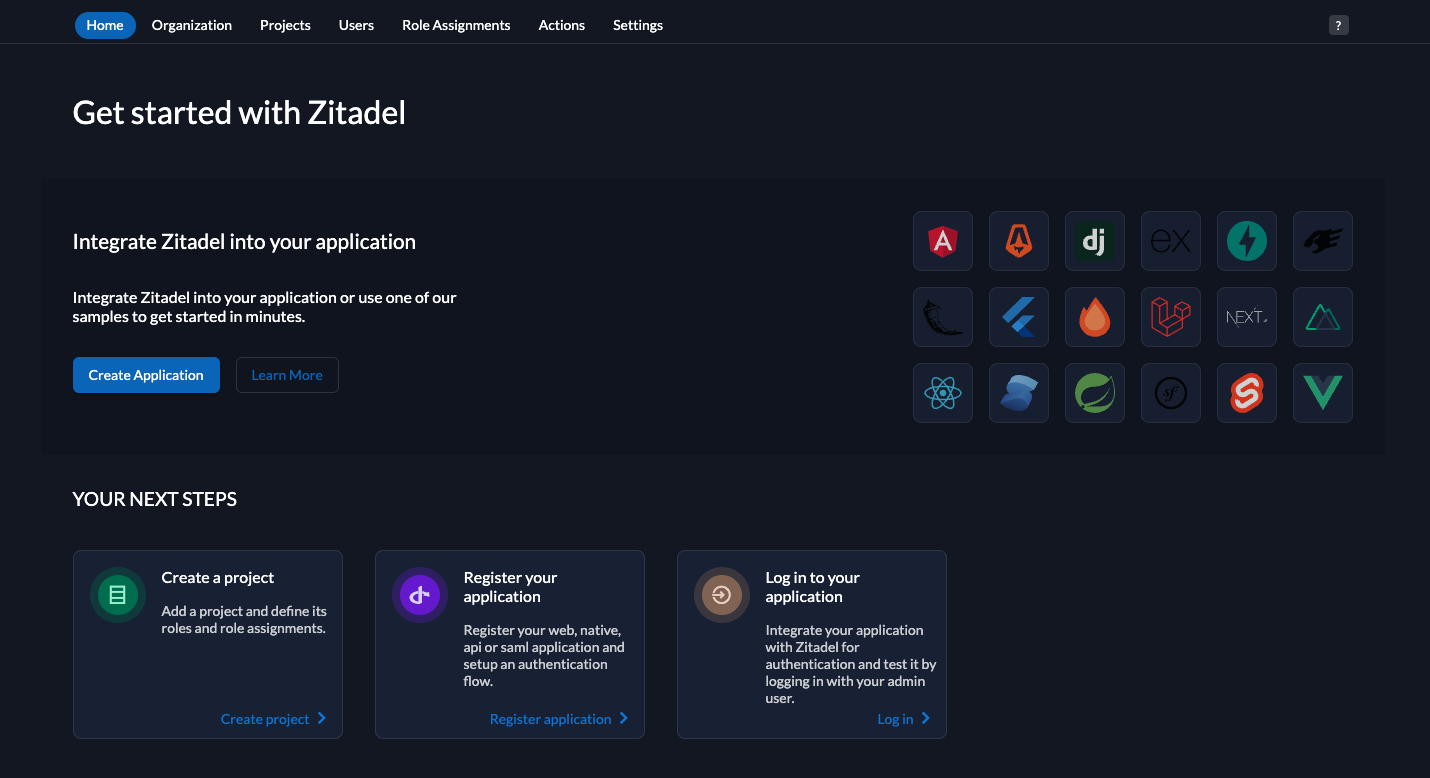
Starting from the homepage of your management console, click on Create Application
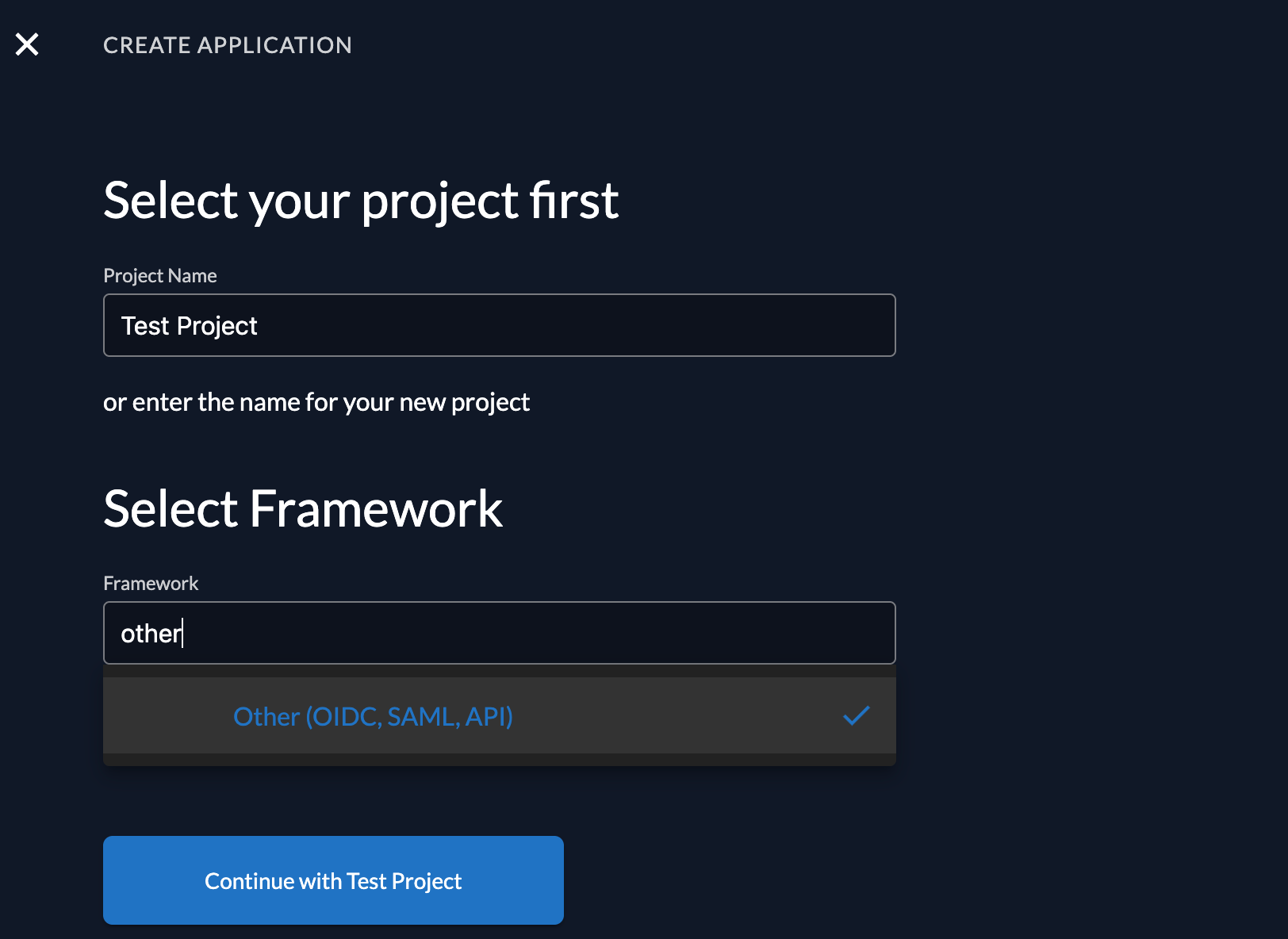
Select a project from the dropdown and select *Other* as framework, then continue.
Add your app name and select *API* as application type, then continue.

We recommend that you use JWT Profile for authenticating at the Introspection Endpoint. So select *JWT* as authentication method

You then need to create a new JSON key.

Select an expiration date that suits you.

And make sure to download it, as you won't be able to retrieve it again.

Now we need to create a *Personal Access Token* to authenticate the application requests.
On the user view, switch to *Service Accounts* and create a new one.

Give the service account a name and a username. Select `Bearer` as *Access Token Type*.

### Create a service account and a personal access token (PAT)
Once done, from the left panel of the user management, click on Personal Access Token and create a new one.

Set an expiration date and then copy the PAT generated to somewhere safe. We will need it later.

## Go Setup
### Add Go SDK to your project
You need to add the [SDK](https://github.com/zitadel/zitadel-go) into Go Modules by:
```bash
go get -u github.com/zitadel/zitadel-go/v3
```
### Create example API
Create a new go file with the content below. This will create an API with three endpoints:
- `/api/healthz`: can be called by anyone and always returns `OK`
- `/api/tasks`: requires authorization and returns the available tasks
- `/api/add-task`: requires authorization with granted `admin` role and adds the task to the list
If authorization is required, the token must not be expired and the API has to be part of the audience (either client_id or project_id).
For tests, we will use a Personal Access Token.
You will need to provide some values for the program to run:
- `domain`: Your ZITADEL Custom Domain, e.g. https://my-domain.zitadel.cloud
- `key`: The path to the downloaded key.json
- `port`: The port on which the API will be accessible, default it 8089
## Test API
After you have configured everything correctly, you can simply start the example by:
```bash
go run main.go --domain --key
```
This could look like:
```bash
go run main.go --domain my-domain.zitadel.cloud --key ./api.json
```
After you get a successful log:
```
2023/12/04 10:27:42 INFO server listening, press ctrl+c to stop addr=http://localhost:8089
```
### Public endpoint
Now you can call the API by browser or curl. Try the healthz endpoint first:
```bash
curl -i http://localhost:8089/api/healthz
```
it should return something like:
```
HTTP/1.1 200 OK
Content-Type: application/json
Date: Mon, 04 Dec 2023 09:29:38 GMT
Content-Length: 4
"OK"
```
### Task list
and the task list endpoint:
```bash
curl -i http://localhost:8089/api/tasks
```
it will return:
```
HTTP/1.1 401 Unauthorized
Content-Type: text/plain; charset=utf-8
X-Content-Type-Options: nosniff
Date: Mon, 04 Dec 2023 09:41:54 GMT
Content-Length: 44
unauthorized: authorization header is empty
```
We need to use the personal access token generated previously.
If you provide a valid Bearer Token:
```bash
curl -i -H "Authorization: Bearer ${token}" http://localhost:8089/api/tasks
```
it will return an empty list:
```
HTTP/1.1 200 OK
Content-Type: application/json
Date: Mon, 04 Dec 2023 09:49:06 GMT
Content-Length: 2
{}
```
### Try to add a new task
Let's see what happens if you call the AddTask endpoint:
```bash
curl -i -H "Authorization: Bearer ${token}" http://localhost:8089/api/add-task
```
it will complain about the missing `admin` role:
```
HTTP/1.1 403 Forbidden
Content-Type: text/plain; charset=utf-8
X-Content-Type-Options: nosniff
Date: Mon, 04 Dec 2023 09:52:00 GMT
Content-Length: 50
permission denied: missing required role: `admin`
```
### Add administrator role
So let's create the role and grant it to the user. To do so, go to your project in ZITADEL Management Console
and create the role by selecting `Roles` in the navigation and then clicking on the `New Role` button.
Finally, create the role as shown below:

After you have created the role, let's grant it to the user who requested the tasks.
Click on `Role Assignments` in the navigation and create a new one by selecting the user and the `admin` role.
After successful creation, it should look like:

So you should now be able to add a new task:
```bash
curl -i -H "Authorization: Bearer ${token}" http://localhost:8089/api/add-task --data "task=My new task"
```
which will report back the successful addition:
```
HTTP/1.1 200 OK
Content-Type: application/json
Date: Mon, 04 Dec 2023 10:06:29 GMT
Content-Length: 26
"task `My new task` added"
```
Let's now retrieve the task list again:
```bash
curl -i -H "Authorization: Bearer ${token}" http://localhost:8089/api/tasks
```
As you can see your new task ist listed. And since you're an `admin` now, you will always get an additional `create a new task on /api/add-task`:
```
HTTP/1.1 200 OK
Content-Type: application/json
Date: Mon, 04 Dec 2023 10:08:38 GMT
Content-Length: 62
{"tasks":["My new task","create a new task on /api/add-task"]}
```